Emergency Notification - User Guide
This guide explains the Emergency Notifications functionality in SGI, used by administrators to send urgent alerts to employees.
Critical communication tool
Use only for situations that require immediate attention. Emergency notifications:
- Ignore users' notification preferences
- Are sent on all available channels (App, Email, Push)
- Generate an audit log in the system
- Count toward the admin's rate limit (5 per minute)
Do not use for routine communication - this generates distrust and may cause users to ignore real alerts.
1. Accessing the screen
On the left sidebar menu, click "Emergencia" (Emergency) (only admins see this option).
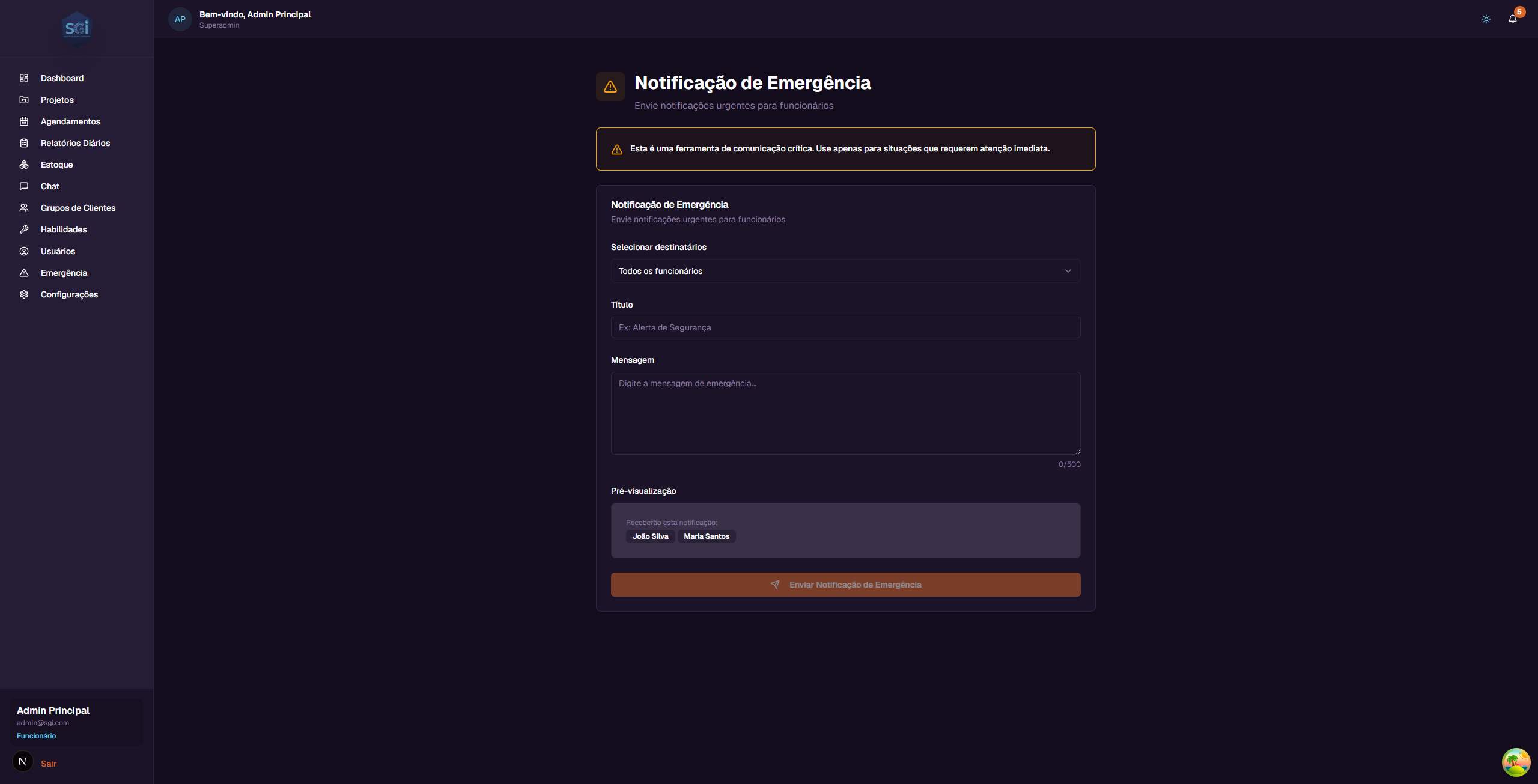
2. The form
Available fields
| Field | Description | Limit |
|---|---|---|
| Recipients | Who will receive (see 3 modes below) | Maximum 100 users |
| Title | Short emergency title | 100 characters |
| Message | Detailed description | 500 characters (visible counter) |
| Preview | Shows in real time what will be sent | - |
3 modes for selecting recipients
| Mode | What it does |
|---|---|
| All employees | Sends to all active employees (up to 100) |
| By project | Only those assigned to a specific project |
| Manual selection | Individual checkboxes |
3. Sending the notification
Step-by-step
- Select the recipient mode
- Choose who will receive
- Fill in Title (max 100 chars) and Message (max 500 chars)
- Check the preview
- Click "Enviar Notificacao de Emergencia" (Send Emergency Notification)
Confirmation window
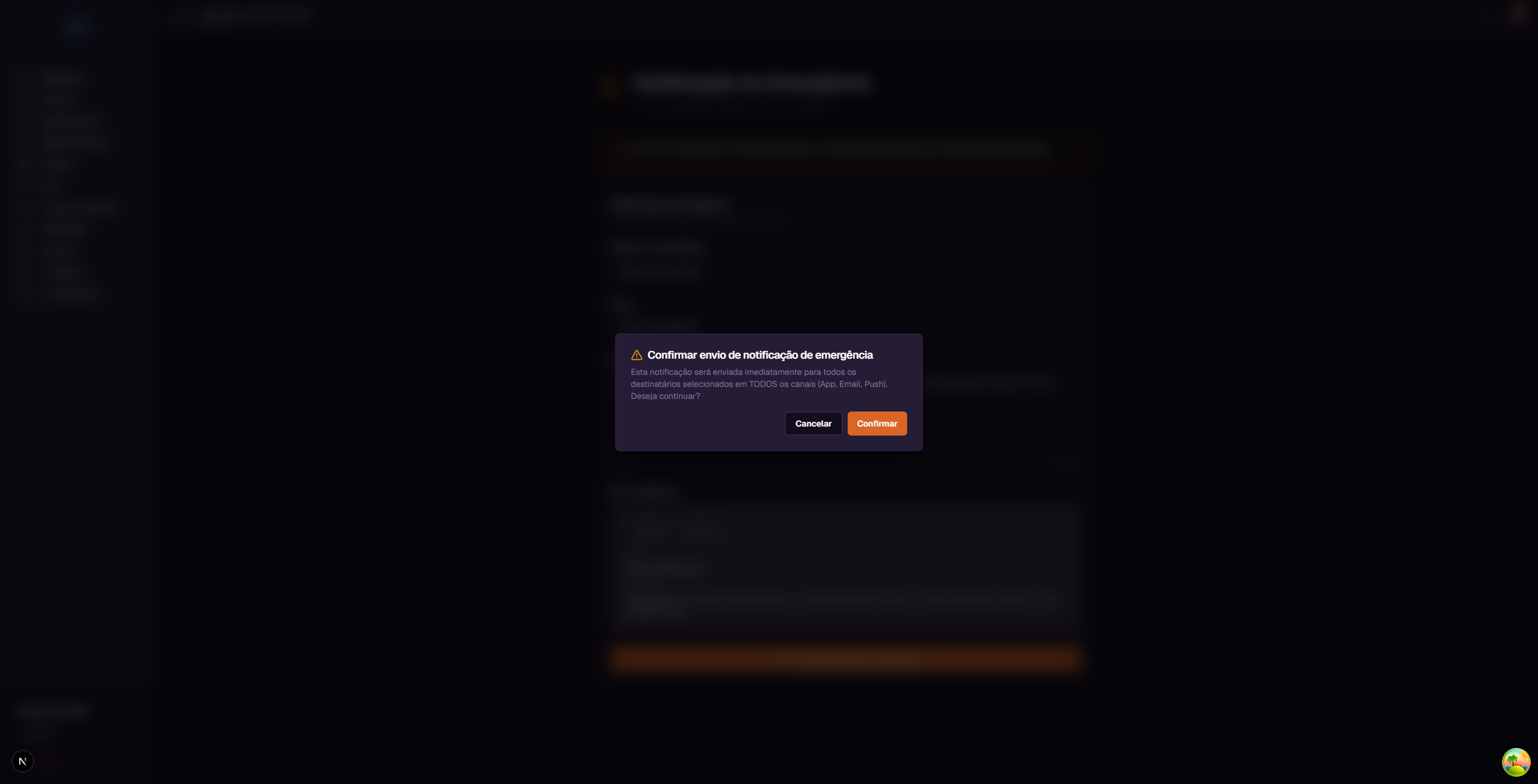
The confirmation warns:
"This notification will be sent immediately to all selected recipients on ALL channels (App, Email, Push). Do you want to continue?"
Click "Confirmar" (Confirm) to send or "Cancelar" (Cancel) to go back.
There is no way to undo
Once sent, the notification cannot be retrieved. Verify recipients, title, and message before confirming.
4. What happens after sending
- System distributes to all selected recipients
- Each user receives on 3 simultaneous channels (even if they have turned them off in preferences):
- App: appears on the bell icon (red highlight)
- Email: sent to registered email
- Push: browser pop-up (if permission granted)
- Audit log is generated in the system with: who sent it, when, how many received, title
- The sending admin counts toward the rate limit (5 sends/minute)
Important Rules
Limits
| Item | Limit | Consequence if exceeded |
|---|---|---|
| Characters in title | 100 | System prevents sending (form validation) |
| Characters in message | 500 | Counter shows how much is left; blocks sending |
| Recipients per send | 100 | System returns error |
| Sends per minute (rate limit) | 5 per admin | "Rate limit exceeded" error - wait 1 min |
Required permissions
| Operation | Super Admin | Admin | Employee |
|---|---|---|---|
| See "Emergencia" (Emergency) menu | Yes | Yes | No |
| Send emergency notification | Yes | Yes | No |
| Receive emergency notification | Yes | Yes | Yes |
Validations that block
Rate limit: 5 per minute
Each admin can send at most 5 emergency notifications per minute. Beyond that, the system temporarily blocks and returns an error. This protects against abuse.
Maximum 100 recipients
If your selection has more than 100 users, the system blocks sending. To reach a larger group, split into separate batches.
Differences from regular notifications
| Characteristic | Regular Notification | Emergency Notification |
|---|---|---|
| Respects user preferences | Yes | No (ignores) |
| Channels sent | Configurable | All (In-App, Email, Push) |
| Sender rate limit | No | 5/minute |
| Audit log | No | Yes |
| Priority | normal | emergency |
| TTL (expiration) | 30 days | 30 days |
System defaults
| Setting | Value |
|---|---|
| Priority | emergency |
| Channels sent | All available |
| Rate limit | 5/min per admin |
| Max recipients | 100 per send |
| Audit log | Always |
Quick summary
| You want to... | Do this... |
|---|---|
| Send emergency alert | "Emergencia" (Emergency) menu |
| Send to all employees | Select "All employees" |
| Send to a project team | Select "By project" and choose the project |
| Send to specific people | Select "Manual selection" + checkboxes |
Best practices
Use sparingly
Emergencies "lose value" if sent too frequently. Reserve for:
- Workplace safety issues
- Situations affecting the entire team immediately
- Last-minute changes to critical deadlines
- Client alerts that require rapid response
Be objective
Short and direct title ("Evacuation Paulista building 1000"), message with what to do and when. Do not use corporate jargon in emergencies.
Never use for routine communication
If you are using "Emergency" for:
- General notices
- Meeting reminders
- Administrative information
Stop. Use Chat, email, or regular notifications. Emergency loses its value if it becomes routine.